The material
arrives already organized.
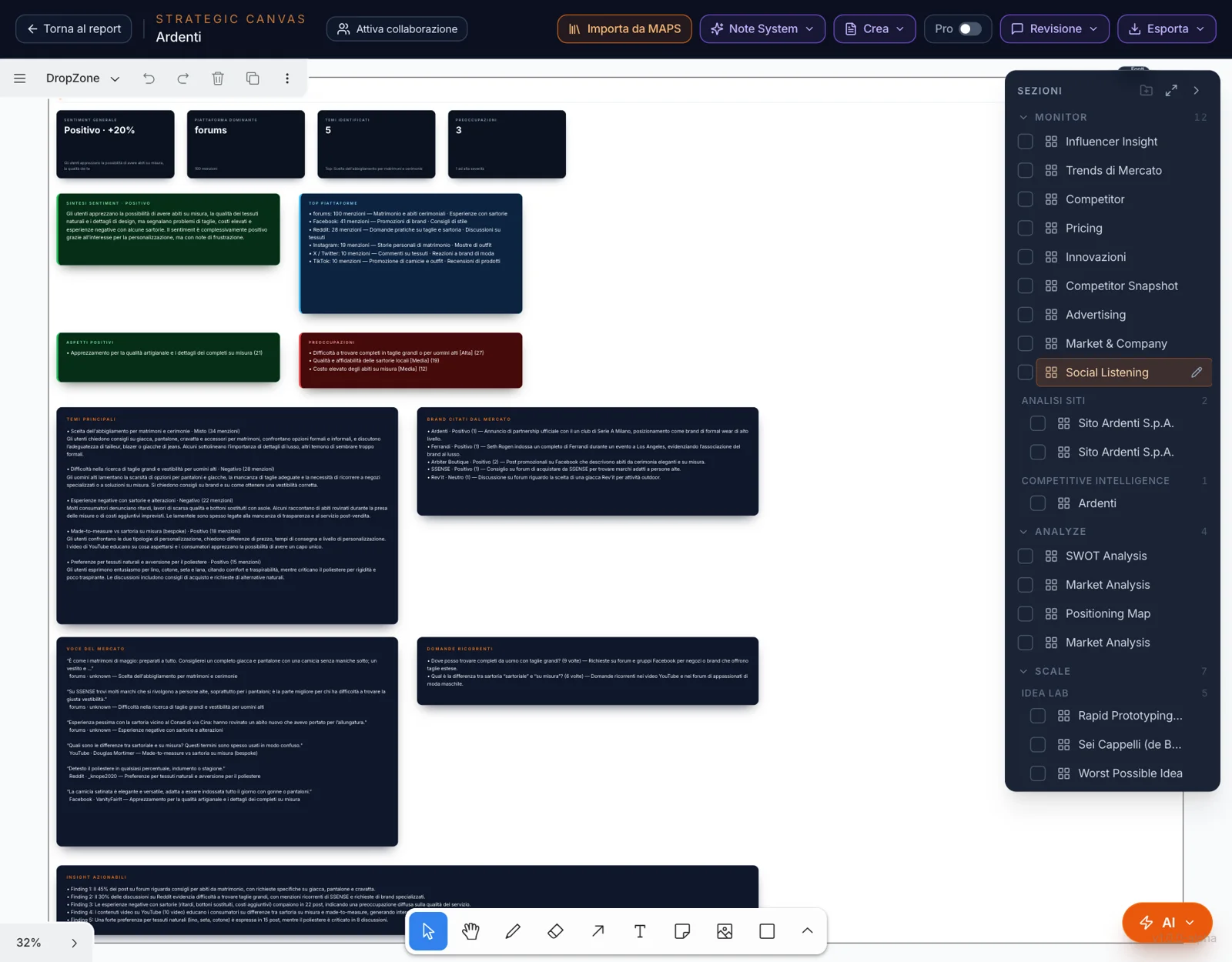
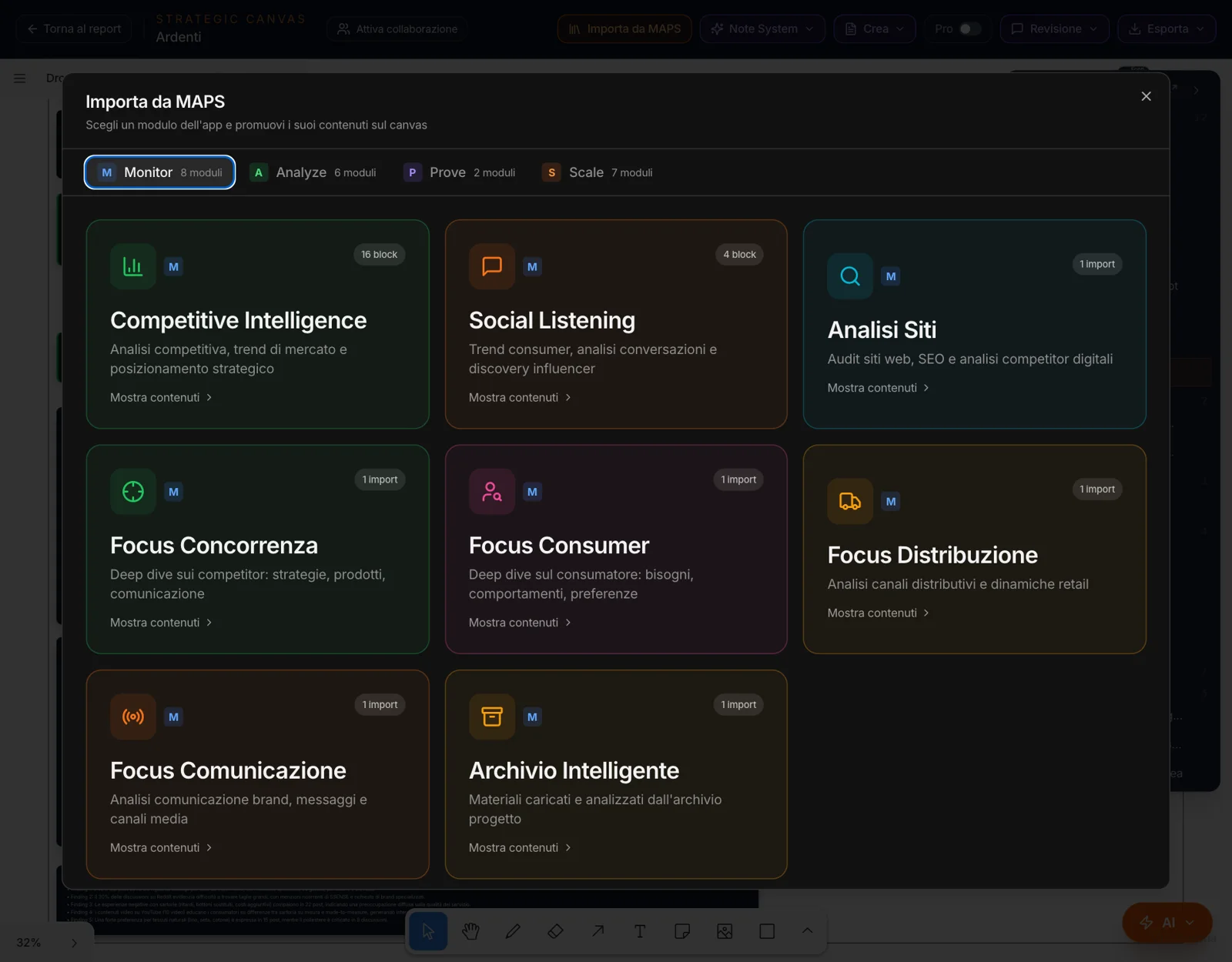
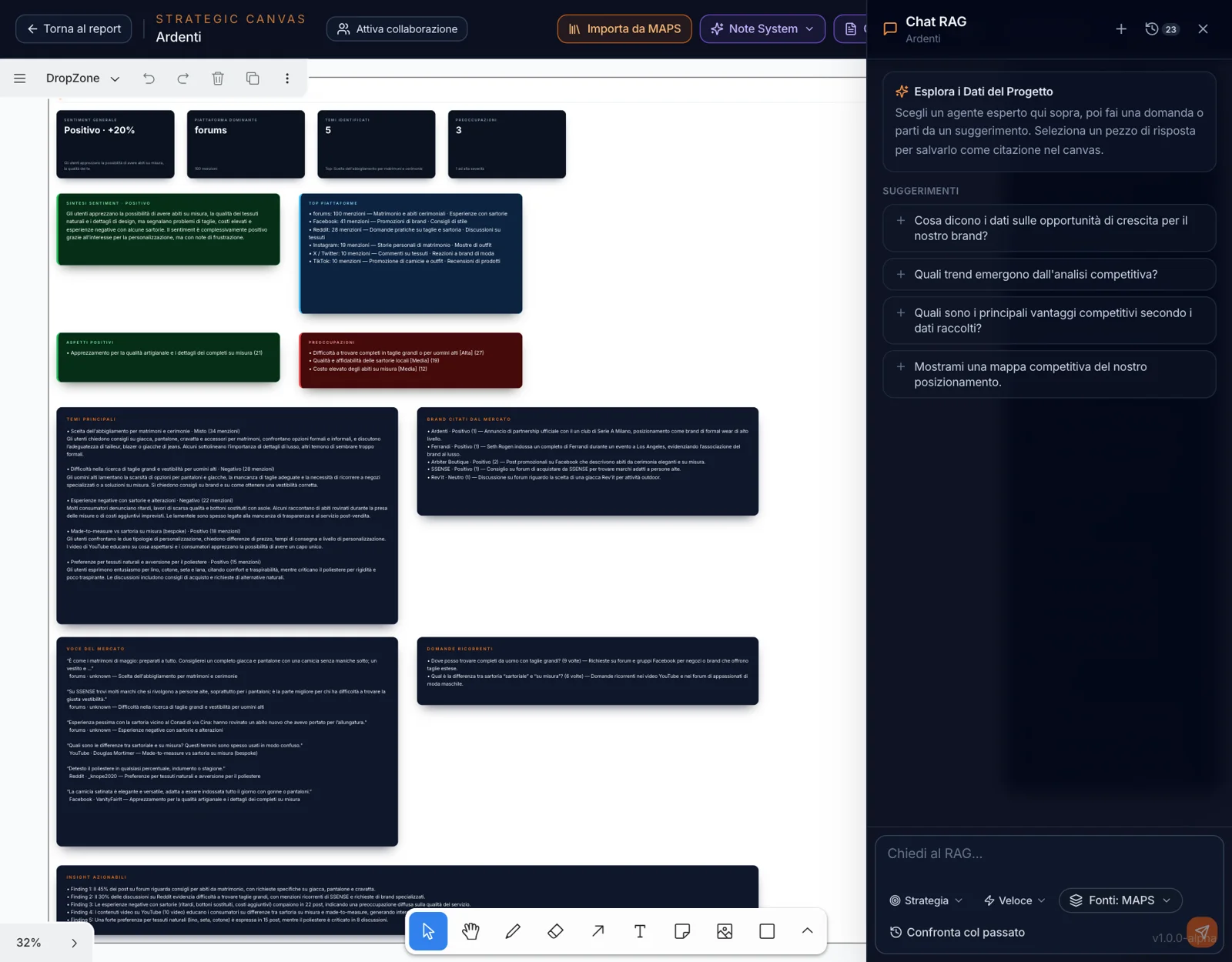
“Import from MAPS” opens the project’s modules grouped by phase — Monitor, Analyze, Prove, Scale. Pick a module and its contents arrive on the canvas as a section of cards: headings, numbers, quotes, lists.
Each section ends up in the Sections index, grouped by phase: one click on the name and the canvas takes you there. When the research is updated, you import it again.
Whatever you find,
you bring here.
The canvas doesn’t wait for you to go to it: things land there while you work.
Add to canvas
From the research tabs, the analyses, the chat’s answers: the piece you need becomes a card on the project canvas.
Text actions
Select a sentence anywhere in the app: Copy, Add to canvas, Create Note, Translate.
Capture area
A portion of the screen — a chart, a table — arrives on the canvas as an image.
The sources
What comes in from the app carries its origin with it. And what you produce on the canvas shows the cards it came from: “Go to source” takes you there.
Your own stuff
Sticky notes, text, arrows, shapes, freehand drawing and uploaded images: it’s a real whiteboard.
One canvas,
many pages.
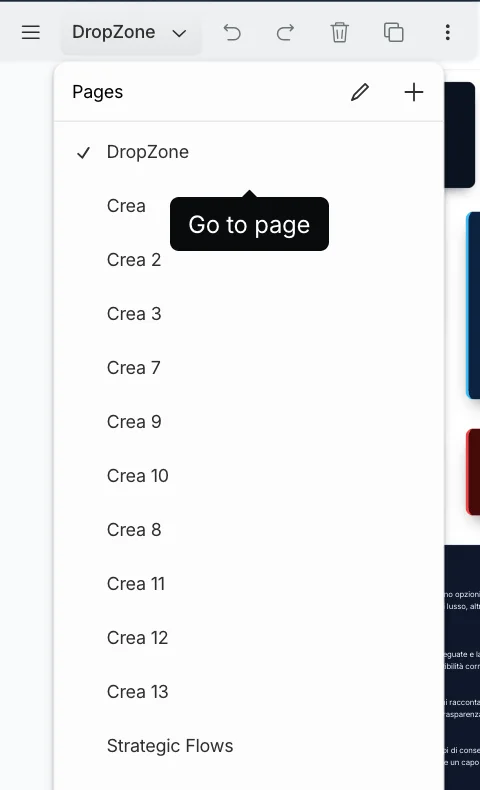
Every project has its own canvas, divided into pages. The DropZone takes in what you import; the Create pages collect what you produce; Strategic Flows and Notes have their own. You add as many as you like, and rename them.
That way raw research doesn’t get mixed up with ideas, and every piece of work has its own space.
The canvas
is more than a whiteboard.
The canvas tools work on top of the material. Each one has its own page.
Create
Select some cards and ask: a post, an email, a video, a web page. The Create chat produces from the material in front of you and takes the work into the Studios.
Notes
Your Zettelkasten: atomic notes, linked to each other, that become the project’s memory.
Pro Mode
Strategic Flows, Strategic Lenses and Idea Lab, directly on the selected cards.
Collaboration
The canvas shared in real time with the team, and guests invited with a link: sticky notes and comments.
Area Canvas
For those working across several countries: one canvas for the area, with the research from every market.
Ask the canvas,
with an expert.
The canvas chat answers from the project’s data. Choose the agent — Strategy, Product, Communication, Consumer, Distribution, Guide —, Fast or Advanced mode, and the sources to draw from.
A useful answer goes onto the canvas as a card, or you select a piece of it as a quote. It becomes a Note, a PDF or a presentation. Conversations stay saved.
Nothing
gets lost.
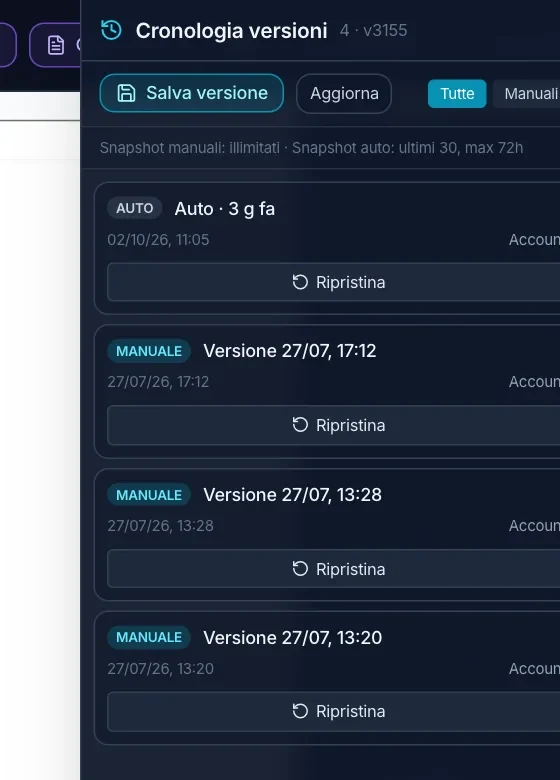
You save a version whenever you want, with no limit; on top of that the canvas saves one on its own every few minutes, if something has changed, and keeps the last thirty. “Restore” saves the current state first.
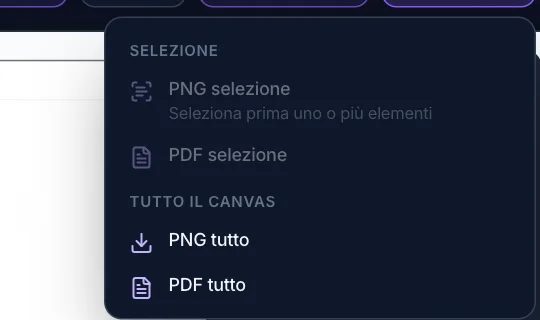
With Review you leave comments on the canvas and reply to them. With Export you download the selection or the whole canvas as PNG or PDF.
What you write,
the project remembers.
The canvas text — the cards, the notes, the Create answers — goes into the project’s memory. You can ask the chat “what did we put on the canvas about made-to-measure?” and it answers from there too.